Integra Credit App? It's the Website — and It Does Everything
There's no separate app to download. Integra Credit runs through a mobile-friendly site and online account: apply, sign, see your schedule and pay from any phone. Add it to your home screen and it behaves like one.
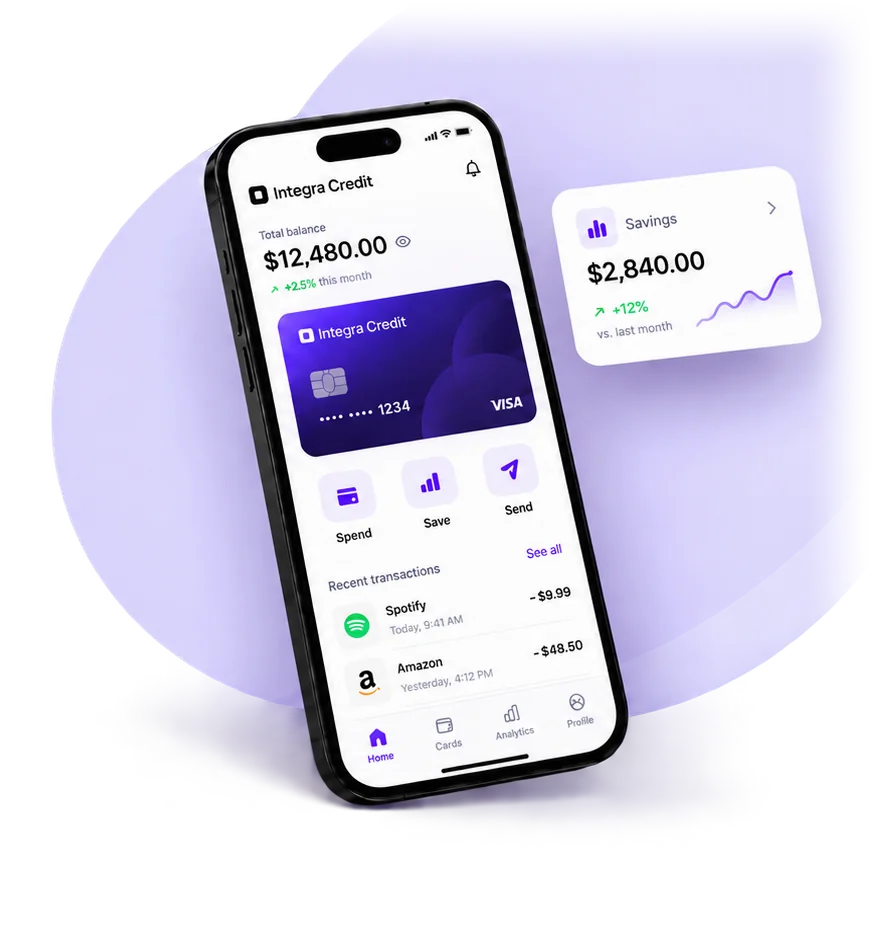
What you can do from your phone
Add Integra Credit to your home screen
iPhone (Safari)
- Open the site in Safari
- Tap the Share icon
- Choose "Add to Home Screen" and tap Add
Android (Chrome)
- Open the site in Chrome
- Tap the ⋮ menu
- Choose "Add to Home screen" and confirm
Only the real site, only over HTTPS
Integra Credit never asks for a fee or your banking password by text or email. Apply at the site address, not through links in unexpected messages.
App & account — FAQ
Is there an Integra Credit app?
Integra Credit does not publish a standalone app in the Apple App Store or Google Play. Everything — applying, e-signing, viewing your schedule, making payments — runs through its mobile-friendly website and online account, which you can save to your phone's home screen.
How do I add Integra Credit to my home screen?
Open the site in Safari (iPhone) or Chrome (Android), tap the share or menu icon, and choose "Add to Home Screen". It then opens like an app.
What can I do in the online account?
See your balance and every upcoming payment date, make an extra or early payment, request a payoff amount, update your bank account and contact details, and download your agreement.
Is the website safe to use on my phone?
Yes. The application and account run over an encrypted SSL connection. Use your own device and avoid public Wi-Fi when entering bank details, as you would with any financial site.
Apply from the phone in your hand
Five minutes, soft inquiry, funds by direct deposit as soon as the next business day.